Search & keyboard shortcuts
The dashboard has one search box that finds every page in the sidebar, your smart links and your Codelloy Pages, and shortens a URL you paste. This page explains how to open search, what it finds, and the keyboard shortcuts on Mac and on Windows / Linux. Search is on every plan, for every role on your team.
Open search
There are three ways to open it:
- Press ⌘K on a Mac, or Ctrl + K on Windows and Linux. It works from anywhere in the dashboard, even while you are typing in a field.
- Press
/when you are not typing in a field. - Click the Search button at the top of the sidebar, just below New link. When the sidebar is collapsed to its icon rail, it is the magnifying glass.
Search opens with the cursor in its search box. Press Esc or click outside it to close it, and you are back where you were. No shortcut opens search while another dialog is already open.
What you can find
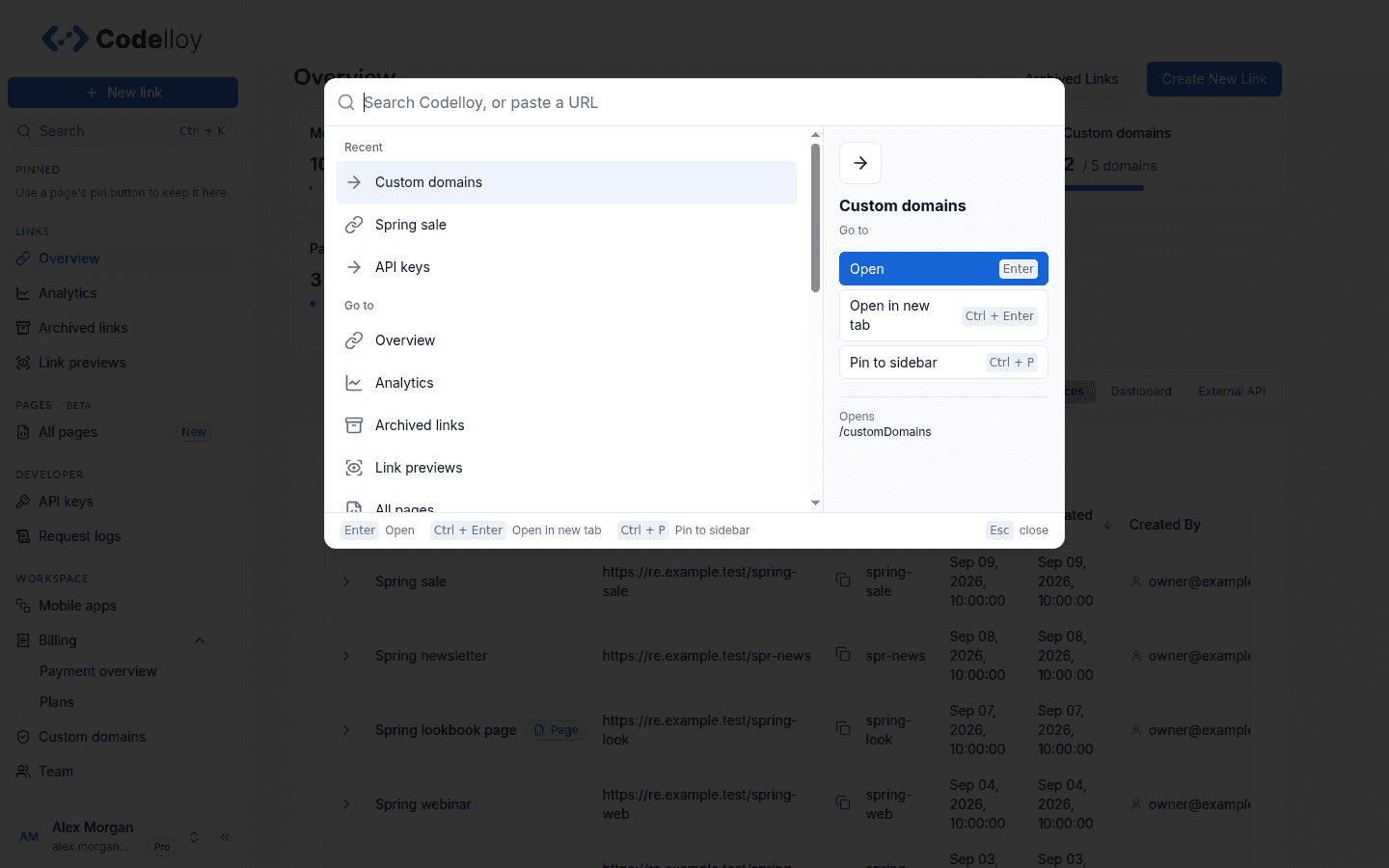
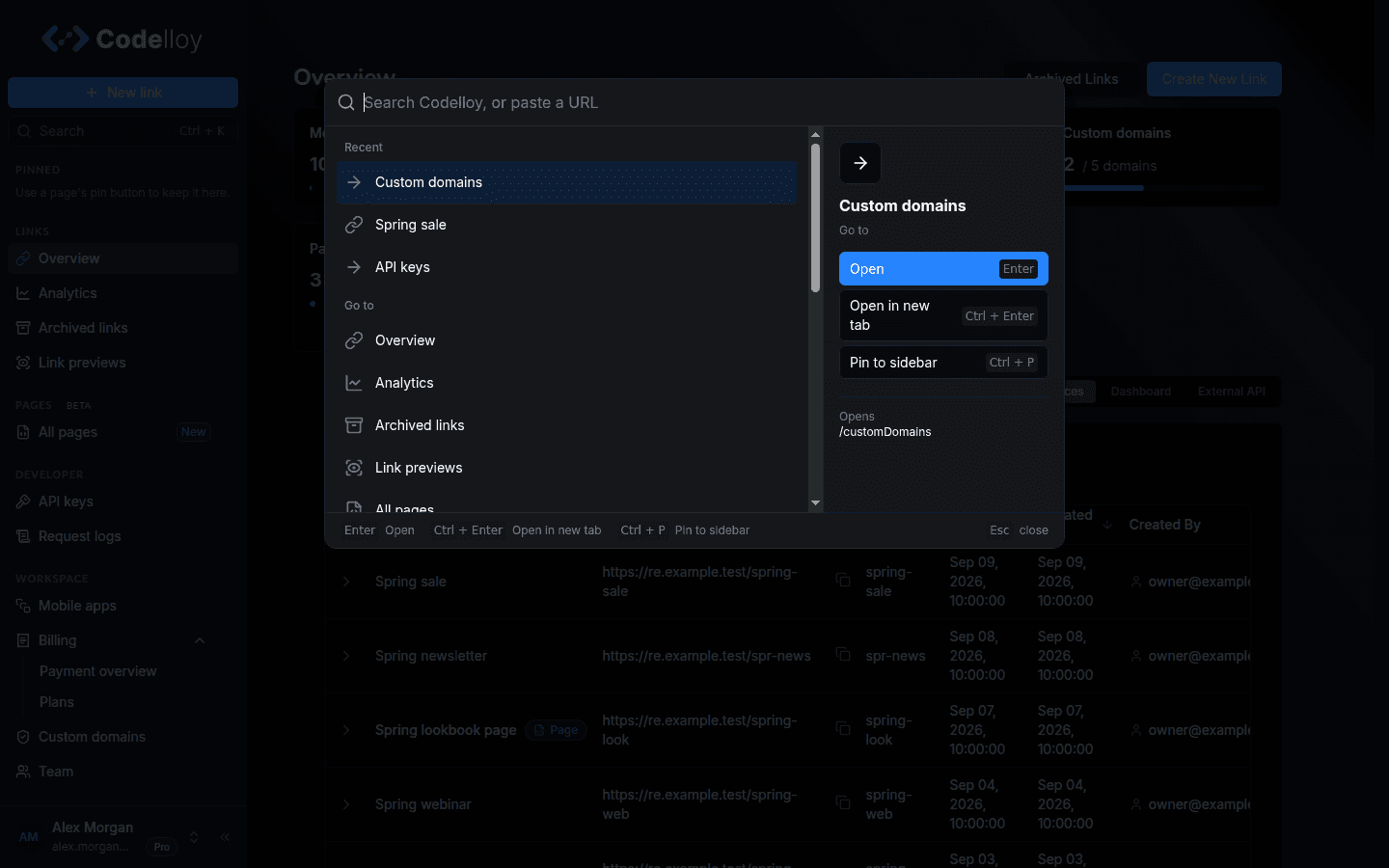
Before you type anything, search shows three groups:
- Recent: up to five things you opened from search before. Recent is kept in this browser only, so it starts empty on a new device.
- Go to: every page in the sidebar, from Overview to Team.
- Actions: New link, switching to the light or dark theme, Keyboard shortcuts and Help & docs.
As you type, the results regroup into Top hit, Go to, Actions, Smart links and Codelloy Pages, and empty groups disappear. The single best match is shown once, as the Top hit, and not again in its own group. Pages also match the words you would naturally use for them: “billing” finds Payment overview and Plans, and “dns” finds Custom domains. Choosing a page under Go to takes you there, and choosing an item under Actions does what it says.
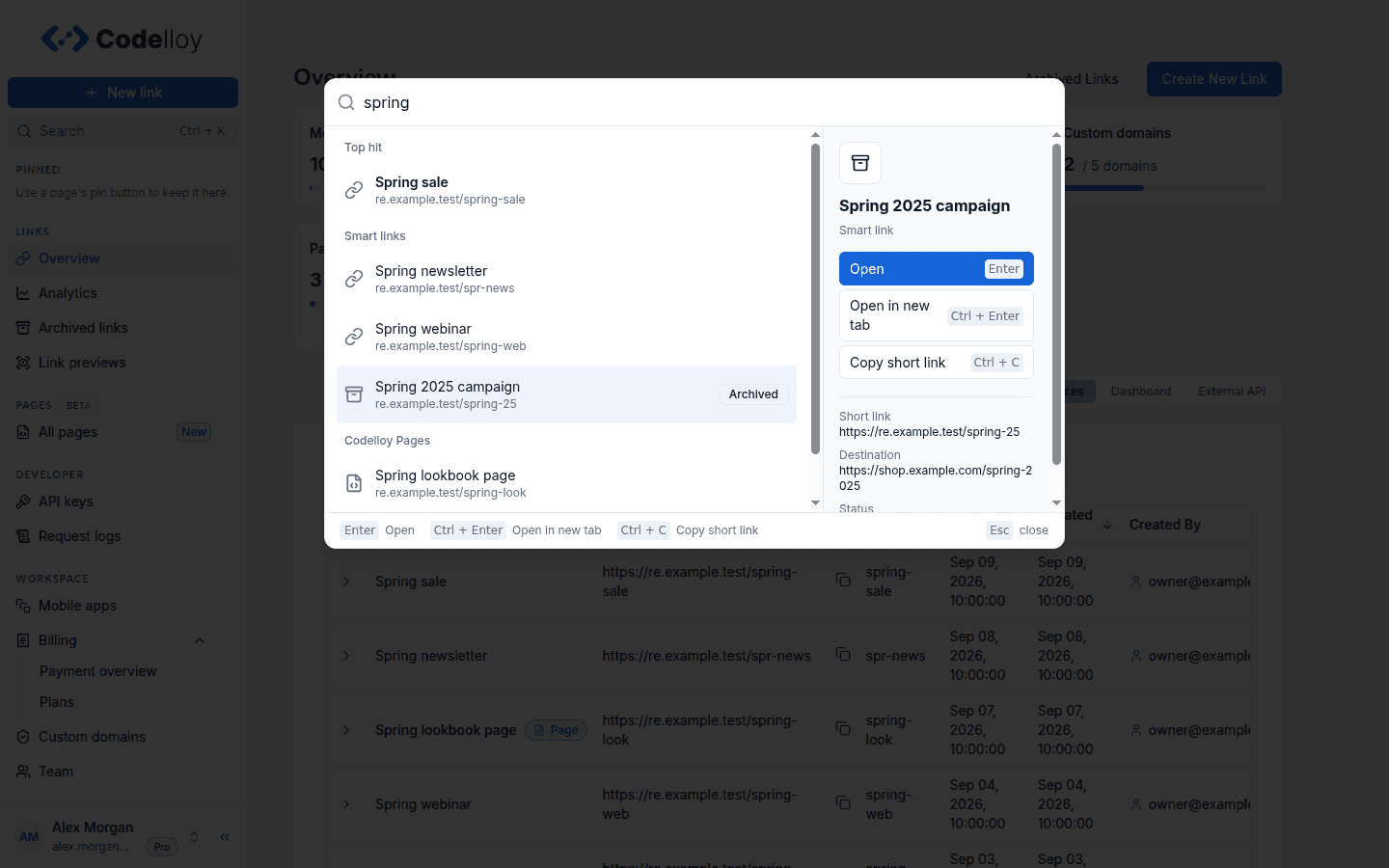
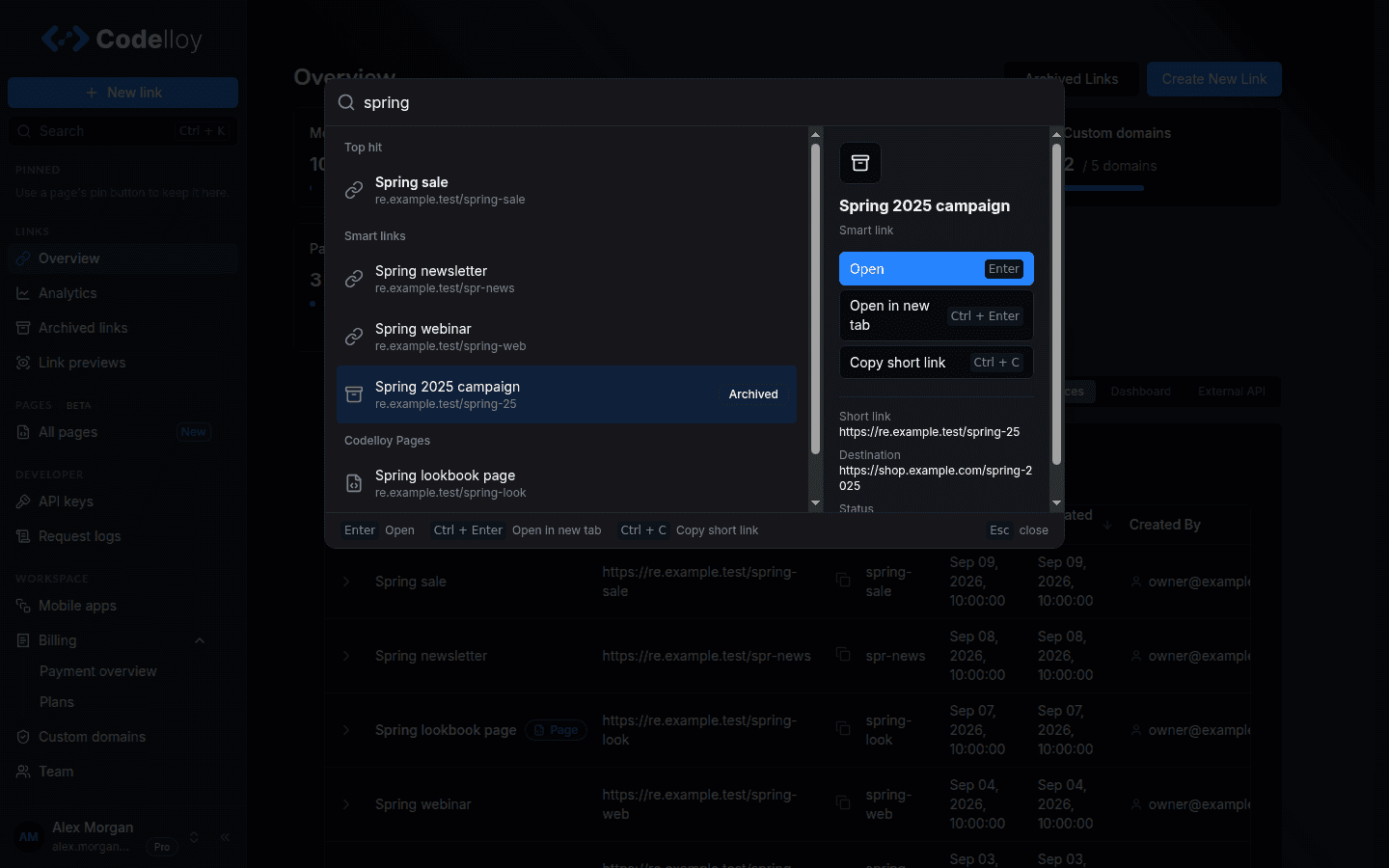
Link search starts at 3 characters. It matches a link’s name, short code, short link or destination URL, and shows up to five links, active ones first. Each result says what it is and opens the place where you can work with it:
- Smart links open in the link editor.
- Codelloy Pages are found through their share link and open that page’s details, the same screen you reach from Pages → All pages.
- An archived link is marked Archived and opens Links → Archived links searched for that link’s short code, because archived links have no editor.
- When more links match than fit, See all results in Overview opens Overview with the same search.
If link search fails, search shows one “Couldn’t search links” row, and no links or Codelloy Pages are listed. Go to and Actions keep working.
Acting on a result
Use the arrow keys to move the highlight and press Enter to open the highlighted result. Opening a page, link or Codelloy Page also adds it to Recent.
On a wider screen, a preview on the right shows the highlighted result: a one-line description for a dashboard page, or the short link, the destination and whether it is Active or Archived for a link or a Codelloy Page. The preview also lists the actions that apply to the result, each with its keys:
- Open (↵ / Enter) opens the result.
- Open in new tab (⌘↵ / Ctrl + Enter) opens it in a new browser tab and leaves your current page as it is.
- Copy short link (⌘C / Ctrl + C) copies a link’s or a Codelloy Page’s short link. If you have selected text in the search box, the shortcut copies that text instead.
- View analytics (⌥↵ / Alt + Enter) opens the analytics for an active smart link.
- Pin to sidebar or Unpin from sidebar (⌘P / Ctrl + P) adds a dashboard page to the sidebar’s Pinned section, or takes it off. The sidebar holds up to six pins; at the limit search says so and pins nothing.
An action that does not apply to the highlighted result is not shown, and its keys do nothing. Items under Recent show only where they open; to copy a short link or open analytics, search for the link.
When you copy a short link, search stays open. Its footer reads “Copied” followed by the short link for two seconds, and screen readers announce the same message, so you can copy several links in a row.
Search never changes your links. It finds them and opens them, copies their short links and pins pages to your sidebar; you make changes on the page it opens.
Shorten a pasted URL
Paste a web address that starts with http:// or https:// and the first action becomes Shorten followed by the site’s host. For example, pasting https://example.com/spring-sale shows Shorten example.com…. Choose it to open New link with that destination already filled in.
Search looks for the pasted URL among your links at the same time, so if you already have a link to it, that link is shown as the Top hit, above the Shorten action.
On a phone
Open the sidebar menu and tap Search. On a phone, search fills the screen and shows no preview and no shortcut hints. Instead, the highlighted result shows its actions as buttons right beneath it, such as Open, Copy short link, View analytics or Pin to sidebar, whichever apply. Tap any result to open it.
Phones have no keyboard shortcuts to list, so the Keyboard shortcuts action and account menu item are not shown there.
Keyboard shortcuts
Press ? to see every shortcut in the dashboard, or choose Keyboard shortcuts in the account menu at the bottom of the sidebar. The dialog shows the keys for the computer you are using. Four shortcuts behave differently from the rest:
/and?do nothing while you are typing in a field, so you can type them as normal characters.- ⌘K / Ctrl + K works everywhere, including inside a form field.
- ⌘P / Ctrl + P pins only while search is open, so printing works normally everywhere else.
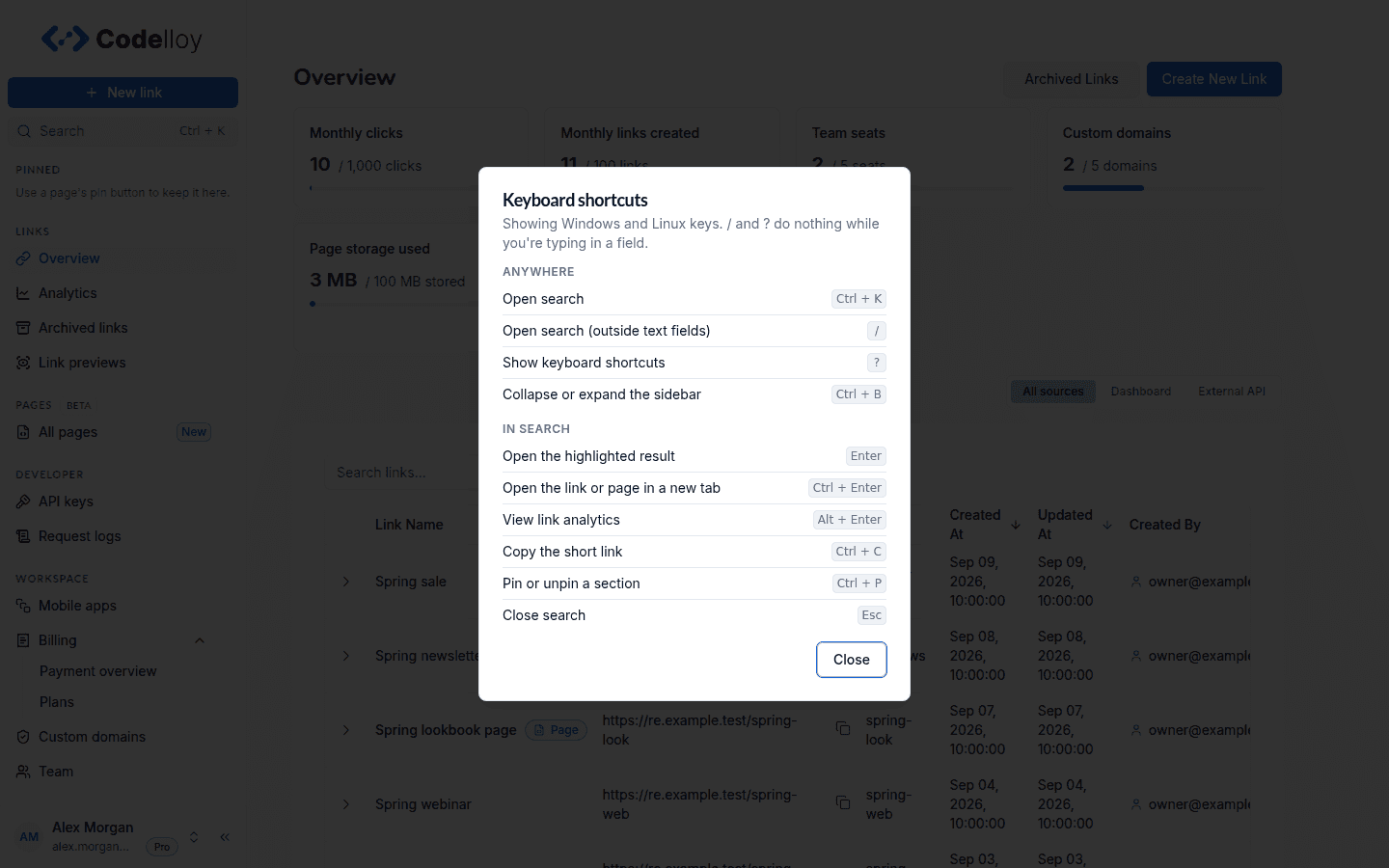
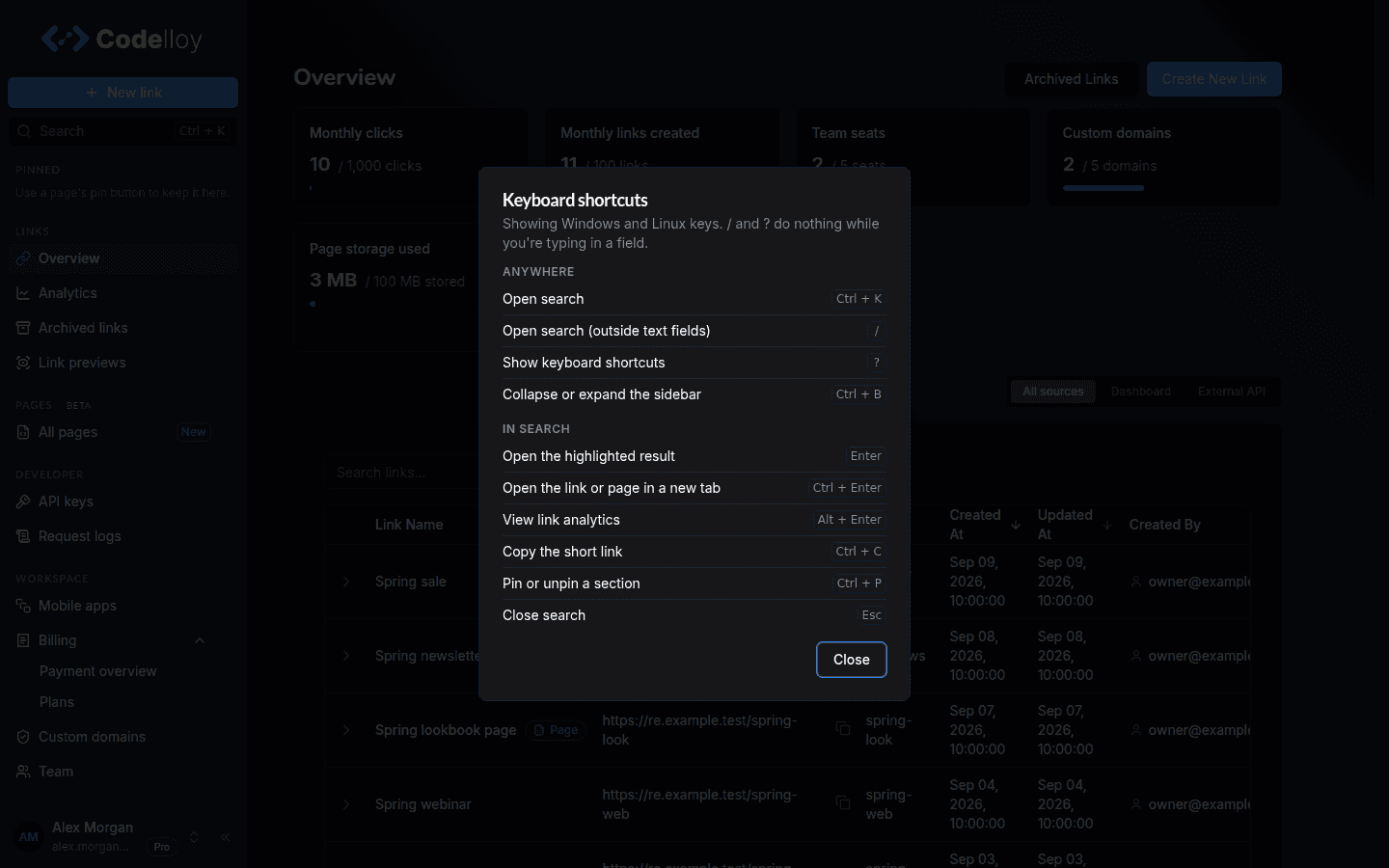
Anywhere
| Action | Mac | Windows / Linux |
|---|---|---|
| Open search | ⌘K | Ctrl + K |
| Open search (outside text fields) | / | / |
| Show keyboard shortcuts | ? | ? |
| Collapse or expand the sidebar | ⌘B | Ctrl + B |
In search
| Action | Mac | Windows / Linux |
|---|---|---|
| Open the highlighted result | ↵ | Enter |
| Open the link or page in a new tab | ⌘↵ | Ctrl + Enter |
| View link analytics | ⌥↵ | Alt + Enter |
| Copy the short link | ⌘C | Ctrl + C |
| Pin or unpin a section | ⌘P | Ctrl + P |
| Close search | Esc | Esc |