Custom Domains
Use your own branded domains for short links instead of the default re.codelloy.com.
Overview
With custom domains, your short links look like https://go.yourbrand.com/abc123 instead of https://re.codelloy.com/abc123. This builds trust with your audience and reinforces your brand every time someone clicks one of your links.
You can connect more than one domain and choose which one each link uses — for example, go.yourbrand.com for marketing and links.yourbrand.com for product.
Plans & Quotas
Custom domains are a paid feature. How many you can connect depends on your plan:
| Plan | Custom domains |
|---|---|
| Free | 0 (feature locked) |
| Pro | 1 |
| Business | 3 |
| Enterprise | Unlimited |
On the Free plan the Custom Domains page shows an upgrade prompt rather than an add form. Pending and active domains both count toward your plan’s limit.
Prerequisites
- A Codelloy account with Owner role
- A domain or subdomain you control (e.g.,
go.yourbrand.com) - Access to your domain’s DNS settings
Step 1: Add Your Domain
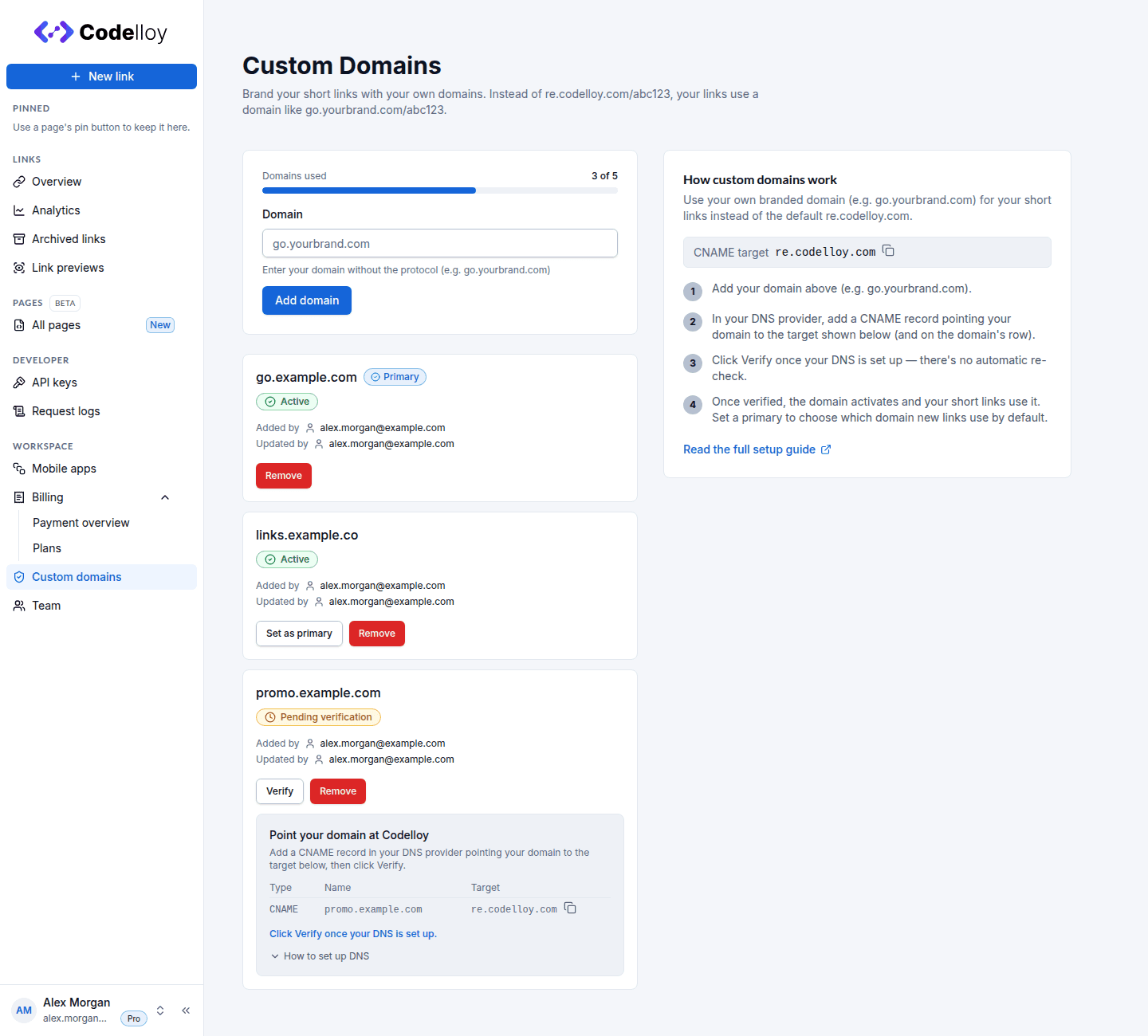
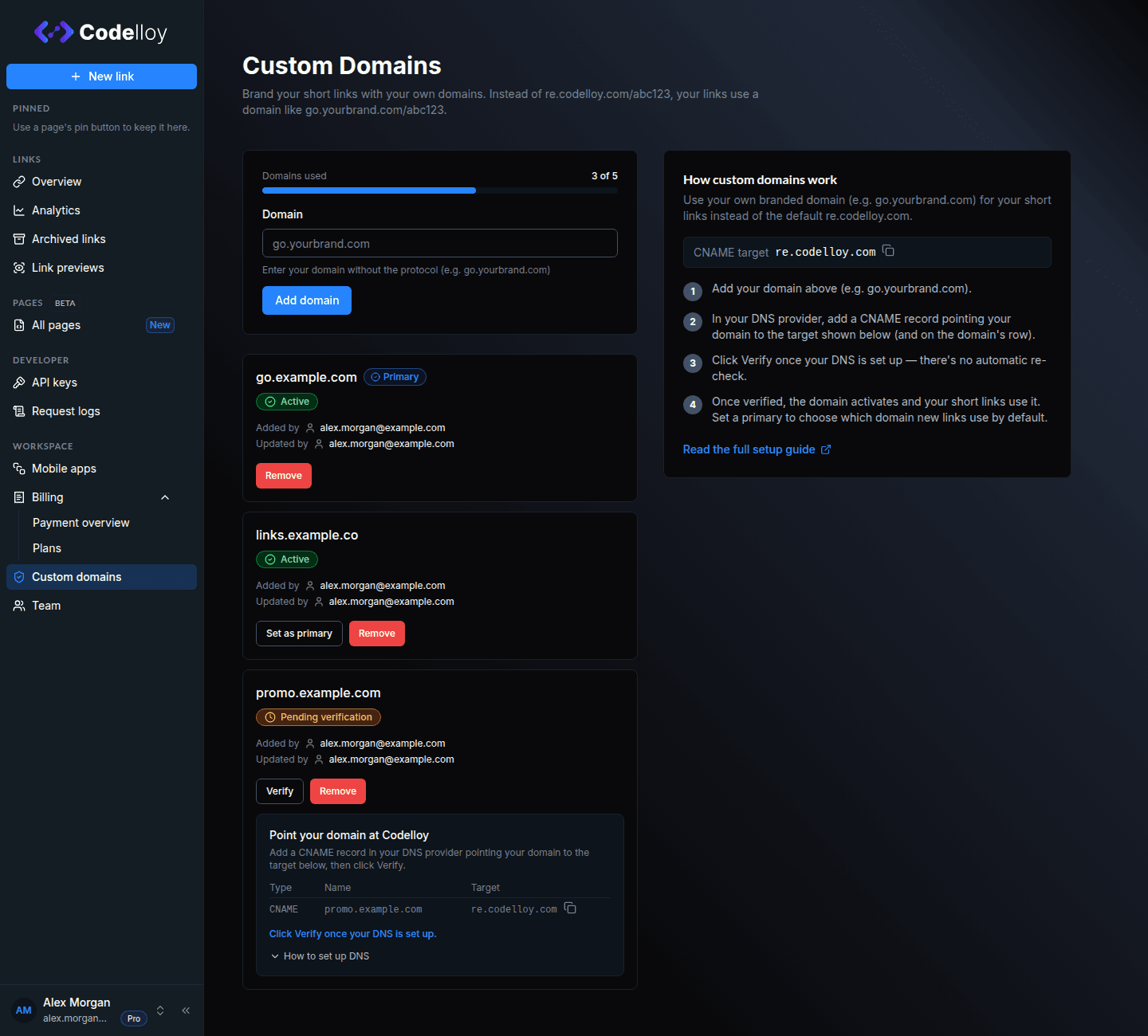
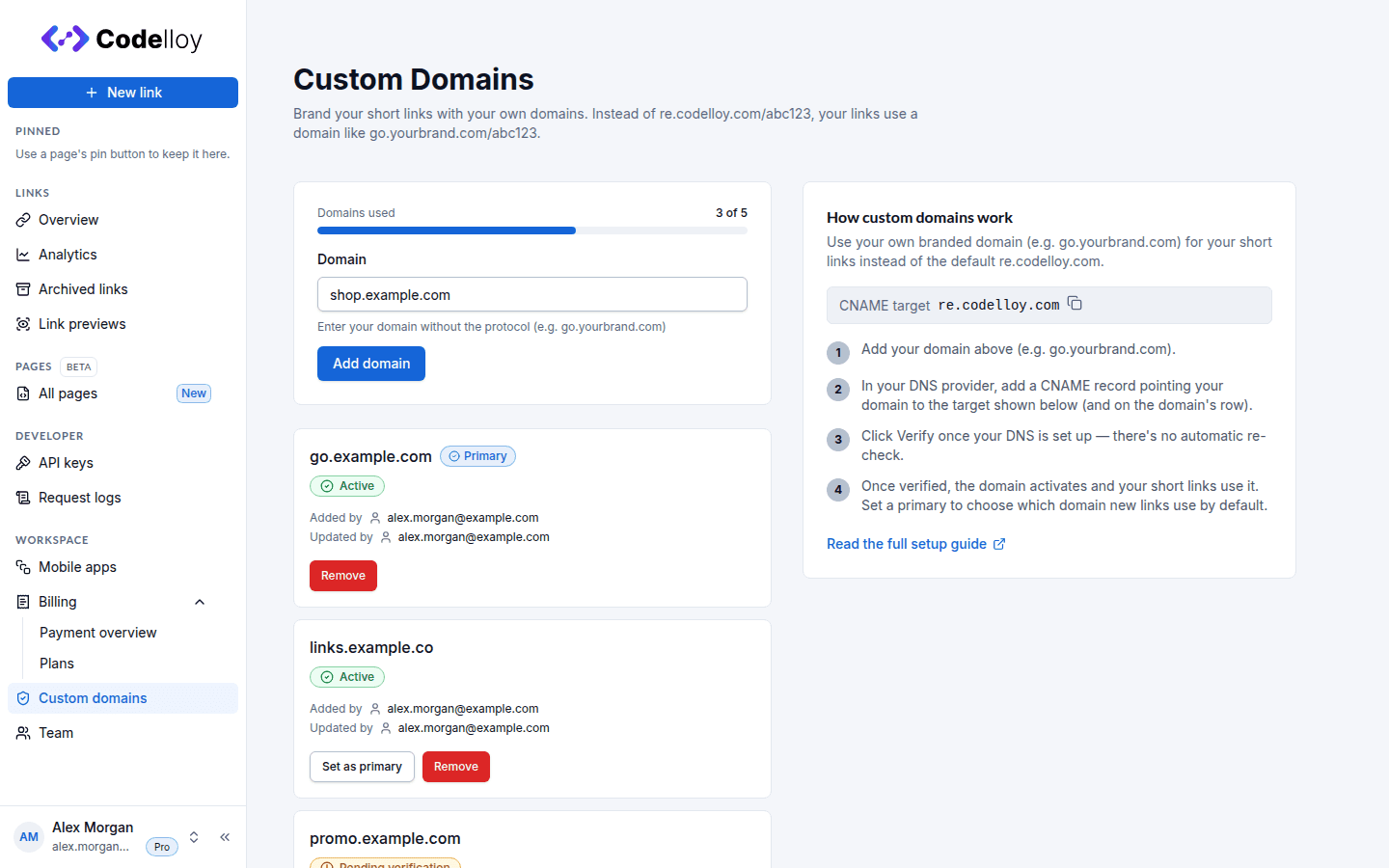
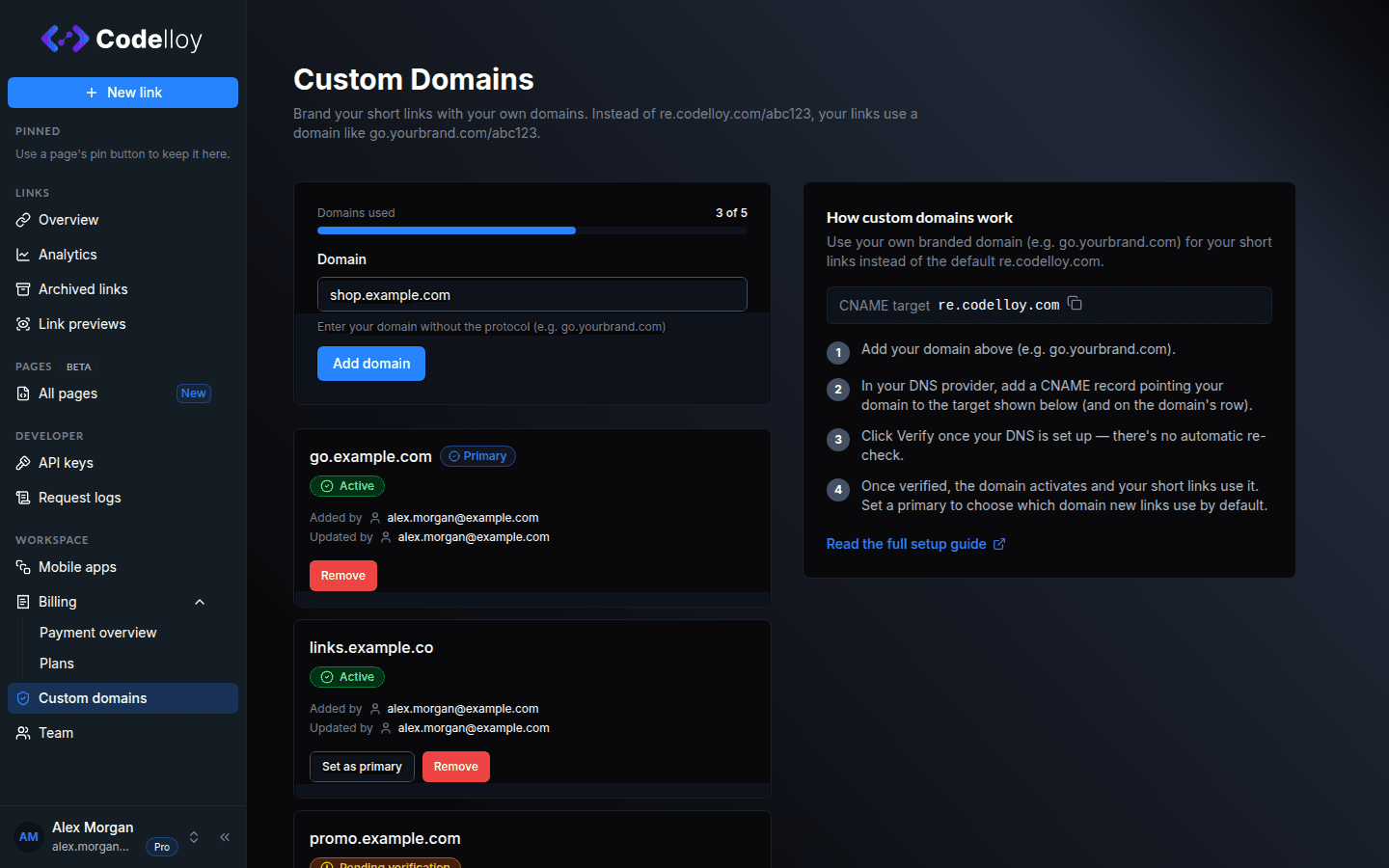
- Open Workspace → Custom domains in the dashboard sidebar
- Enter your subdomain (e.g.,
go.yourbrand.com); you can paste a full URL likehttps://go.yourbrand.comand Codelloy will strip the protocol for you - Click Add domain
Codelloy immediately tries to verify the domain. If your DNS record is already configured, the domain activates on the spot and its status shows Active. If DNS hasn’t propagated yet, the domain is saved as Pending and you’ll see setup instructions with a Verify button.
Step 2: Configure DNS
Add a CNAME record in your DNS provider pointing your subdomain to Codelloy:
| Type | Name (Host) | Target / Value |
|---|---|---|
| CNAME | go.yourbrand.com | re.codelloy.com |
Tip: Some DNS providers ask for the full subdomain name (
go.yourbrand.com), others ask for just the label (go). Check what your provider expects; both formats refer to the same record.
DNS Propagation: After saving your CNAME record, changes can take anywhere from 30 minutes to 48 hours to propagate globally. Do not expect verification to pass immediately; wait, then click Verify.
Common DNS Providers
Cloudflare
- Go to your domain’s DNS tab
- Click Add Record
- Type:
CNAME, Name:go, Target:re.codelloy.com - Proxy status: DNS only (grey cloud) (see Cloudflare section below)
GoDaddy
- Open DNS Management for your domain
- Click Add → CNAME
- Host:
go, Points to:re.codelloy.com
Namecheap
- Go to Advanced DNS for your domain
- Click Add New Record → CNAME Record
- Host:
go, Value:re.codelloy.com
Step 3: Verify Your Domain
- If the domain already shows Active after Step 1, you’re done. DNS was already propagated.
- If the domain shows Pending: wait for DNS to propagate (30 minutes to 48 hours), then open Workspace → Custom domains and click Verify. If verification fails, the status shows Failed with the reason (e.g. “No CNAME found”); wait a bit longer and click Verify again. This is normal while DNS propagates.
Codelloy checks your DNS when you add a domain and each time you click Verify. There is no automatic background re-check — click Verify once your DNS is set up.
Once verified, the status changes to Active.
How Verification Works
Codelloy checks your domain using up to three methods, stopping as soon as one succeeds:
- DNS CNAME check: confirms your domain’s CNAME record points to
re.codelloy.com - IP address match: resolves both your domain and
re.codelloy.comto IP addresses and checks for overlap (handles direct A-record setups) - HTTP reachability: makes a live HTTP request to your domain to confirm it routes through Codelloy
Your Primary Domain
The first domain you verify automatically becomes your primary domain — the default host for new short links. When you have two or more active domains, each non-primary row shows a Set as primary action so you can change which one is the default. There is always exactly one primary domain.
Choosing a Domain per Link
- With one active custom domain, new links automatically use it — nothing extra to do.
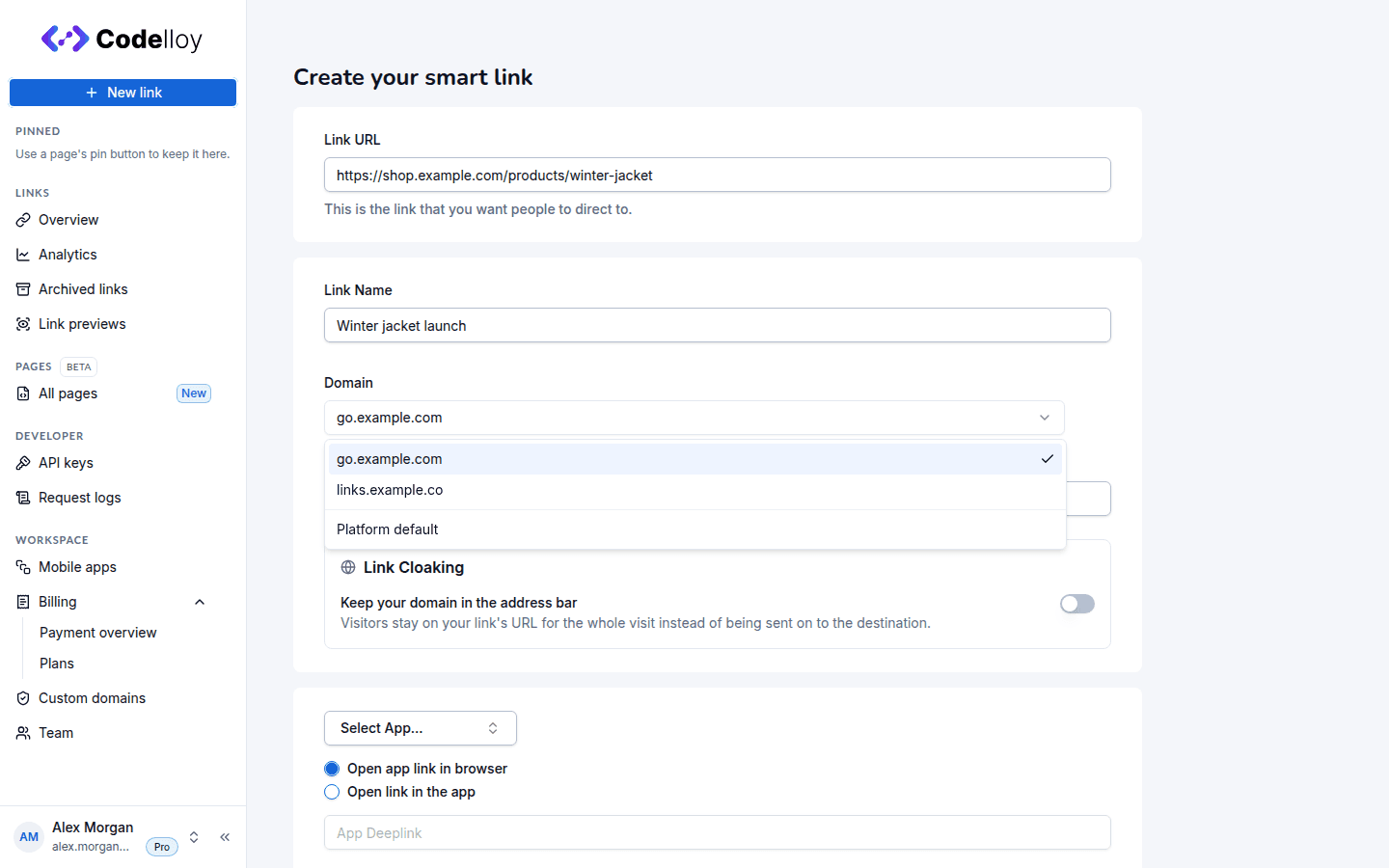
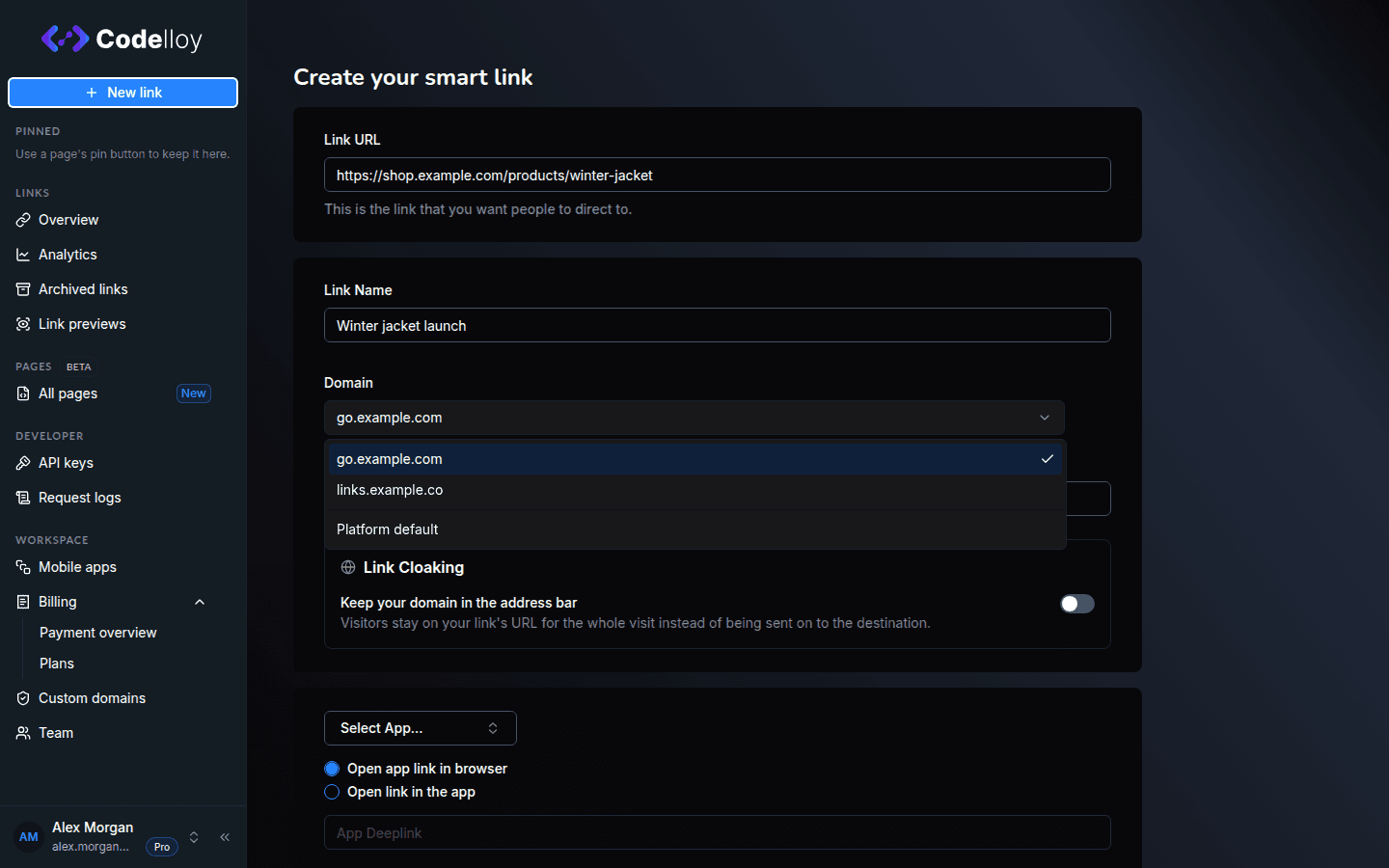
- With two or more active domains, the New Link and Edit Link forms show a Domain selector (between Link Name and Short Code). It defaults to your primary domain. You can pick any active domain, or choose Platform default to put that specific link on
re.codelloy.com.
On Edit Link, the selector pre-fills the domain the link was created with. Changing it updates the live short URL, so anyone using the old branded URL will need the new one.
After Activation
- New short links default to your primary domain (or whichever domain you choose per link).
- Links created before you added a domain continue to work on their existing URL.
- SSL/TLS certificates are provisioned automatically via Let’s Encrypt, with no manual cert management needed.
- Each link is served on the domain it was created with plus
re.codelloy.com. Any other host — including your other custom domains — returns a 404.re.codelloy.comis always a working fallback for every link. - Your domains stay active until you explicitly remove them; DNS changes do not auto-deactivate them.
Removing a Domain
Removing a domain is non-destructive:
- The links that used it keep working on
re.codelloy.com— they don’t break. - Printed QR codes that encode that domain stop working, because the domain no longer resolves. (The link itself is fine on
re.codelloy.com.) - Your other domains and their links are unaffected, and the freed slot becomes available to add another domain.
- If you re-add the same domain later and verify it again, the links that were on it light back up on it.
Before removing, the dashboard shows how many links use the domain so you can decide knowingly.
Cloudflare
Can I use Cloudflare with my custom domain?
Yes, but the setup requires an extra step when first activating the domain.
Codelloy uses TLS-ALPN-01 to issue Let’s Encrypt certificates. This challenge must reach the origin server directly, but Cloudflare’s proxy intercepts it if orange-cloud is enabled, causing cert issuance to fail.
Required setup:
- Set your CNAME record to DNS only (grey cloud ☁) in Cloudflare
- Verify and activate your domain in the Codelloy dashboard
- Wait for the green padlock to appear in your browser (usually within 1 minute)
- You can now re-enable the Cloudflare proxy (orange cloud 🟠) if you want it
If the dashboard shows a yellow warning about Cloudflare proxy, follow the steps above and click Verify.
What Cloudflare SSL/TLS mode should I use after re-enabling proxy?
Use Full or Full (strict). Never use Flexible, as it sends plain HTTP between Cloudflare and the origin, which means your visitors’ data is unencrypted for part of the journey.
FAQ
Can I use a root/apex domain like yourbrand.com?
No. Apex domains (yourbrand.com without a subdomain) cannot use CNAME records; DNS does not allow it. Use a subdomain like go.yourbrand.com or links.yourbrand.com instead.
Can I use an A record instead of a CNAME?
Yes, if the A record points to the same IP address as re.codelloy.com. You can confirm the current IP by running dig re.codelloy.com or using an online DNS lookup tool.
How many custom domains can I connect?
It depends on your plan: Pro 1, Business 3, Enterprise unlimited (Free cannot connect a custom domain). See Plans & Quotas.
Which domain do new links use?
Your primary domain by default. If you have two or more active domains, you can choose a different one per link on the New Link / Edit Link form, including Platform default (re.codelloy.com).
Can I use a deeply nested subdomain like go.links.yourbrand.com?
Yes, any valid fully-qualified hostname works.
How long does DNS propagation take?
30 minutes to 48 hours is typical. Most DNS providers propagate within 1 hour. If verification keeps failing, open a new browser tab and run nslookup go.yourbrand.com to check whether your CNAME has propagated.
Is HTTPS automatic?
Yes. Once your domain is verified and the route is created, Let’s Encrypt issues a certificate automatically on the first HTTPS connection to your domain. No manual configuration is needed. Certificates auto-renew before expiry.
Who issues the SSL certificate?
Let’s Encrypt. The certificate appears in public Certificate Transparency (CT) logs; this is standard for all HTTPS certificates and is not a privacy concern.
Can two accounts claim the same domain?
No. Each domain can only be claimed by one organisation. A unique constraint prevents the same hostname from being registered to two organisations at once.
Can I still access my custom domain links via re.codelloy.com?
Yes. The platform default re.codelloy.com always works for any link, regardless of which domain it was created under.
What happens if someone visits my link using a different domain?
They will see a 404. Each link is served only on the domain it was created with (plus re.codelloy.com). This applies even to your other custom domains, which prevents domain confusion and abuse.
Can I claim a Codelloy system domain like api.codelloy.com?
No. Platform-controlled domains are blocked and cannot be used as custom domains.
What happens to existing links if I remove a domain?
They continue to work on re.codelloy.com. Only the branded hostname goes away; the link destination is unaffected. Printed QR codes that encode the removed domain will stop working — re-add and re-verify the domain to restore them.
What happens if I change my DNS after a domain is active?
The domain stays active in Codelloy until you explicitly remove it. DNS changes do not trigger automatic deactivation, which prevents transient DNS issues from breaking your links.
Troubleshooting
| Problem | What to do |
|---|---|
| Domain stuck on Pending | Wait for DNS propagation (up to 48h), then click Verify |
| Domain shows Failed | Verification didn’t pass yet (e.g. “No CNAME found”). Confirm your CNAME, wait for propagation, then click Verify again |
| Yellow “Cloudflare proxy” warning | Set DNS record to DNS-only (grey cloud), click Verify, re-enable proxy after the padlock appears |
| ”Invalid domain format” error | Enter a full subdomain, e.g. go.yourbrand.com, not just go |
| Certificate warning right after setup | Wait ~1 minute and refresh; SSL is issued on the first connection |
| Removed a domain by mistake | Re-add it under Workspace → Custom domains. If your CNAME is still configured, it verifies and activates again, and links that were on it come back |
| CNAME looks correct but still failing | Some providers take longer to propagate globally. Click Verify again every few minutes |
| ”Domain already claimed” error | That exact hostname is registered to another organisation. Use a different subdomain. |
Link shows 404 on a custom domain but works on re.codelloy.com | That link wasn’t created on the domain you’re using, or the domain isn’t active. Open Workspace → Custom domains to check status, and confirm the link’s domain on Edit Link. |