Mobile Apps
When you create a short URL via the External API and you want it to deep-link into your native app, every entry in the deepLinks[] array must reference a registered mobile app via a mobileAppId. This guide walks you through the one-time setup of registering your iOS and Android apps on the Codelloy dashboard and copying the per-platform mobileAppId strings into your integration.
Why register your mobile apps?
A short URL with a deepLinks[] entry uses the registered mobile app to:
- Choose the right App Store / Play Store fallback URL when the user doesn’t have the app installed.
- Distinguish the iOS vs Android target so the redirector can fire the correct deep link scheme.
- Keep the store URL editable in one place: change
MobileApp.storeUrlonce in the dashboard and every existing short URL that references that app reflects the new value at click time.
If you don’t register any mobile apps, you can still create short URLs via the External API, but they won’t carry deepLinks[] entries, so they behave like plain redirects on every platform.
Step 1: Open the dashboard
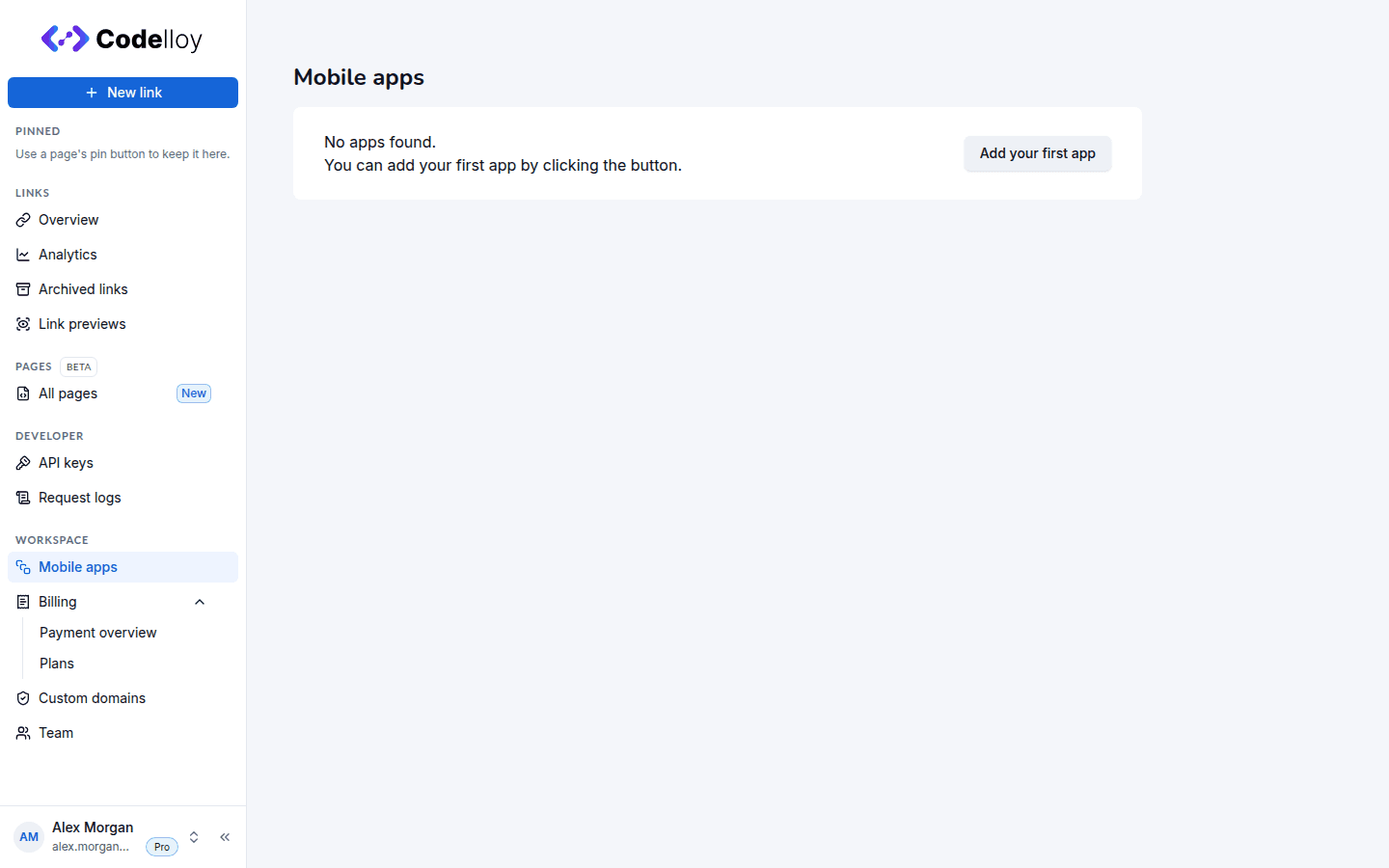
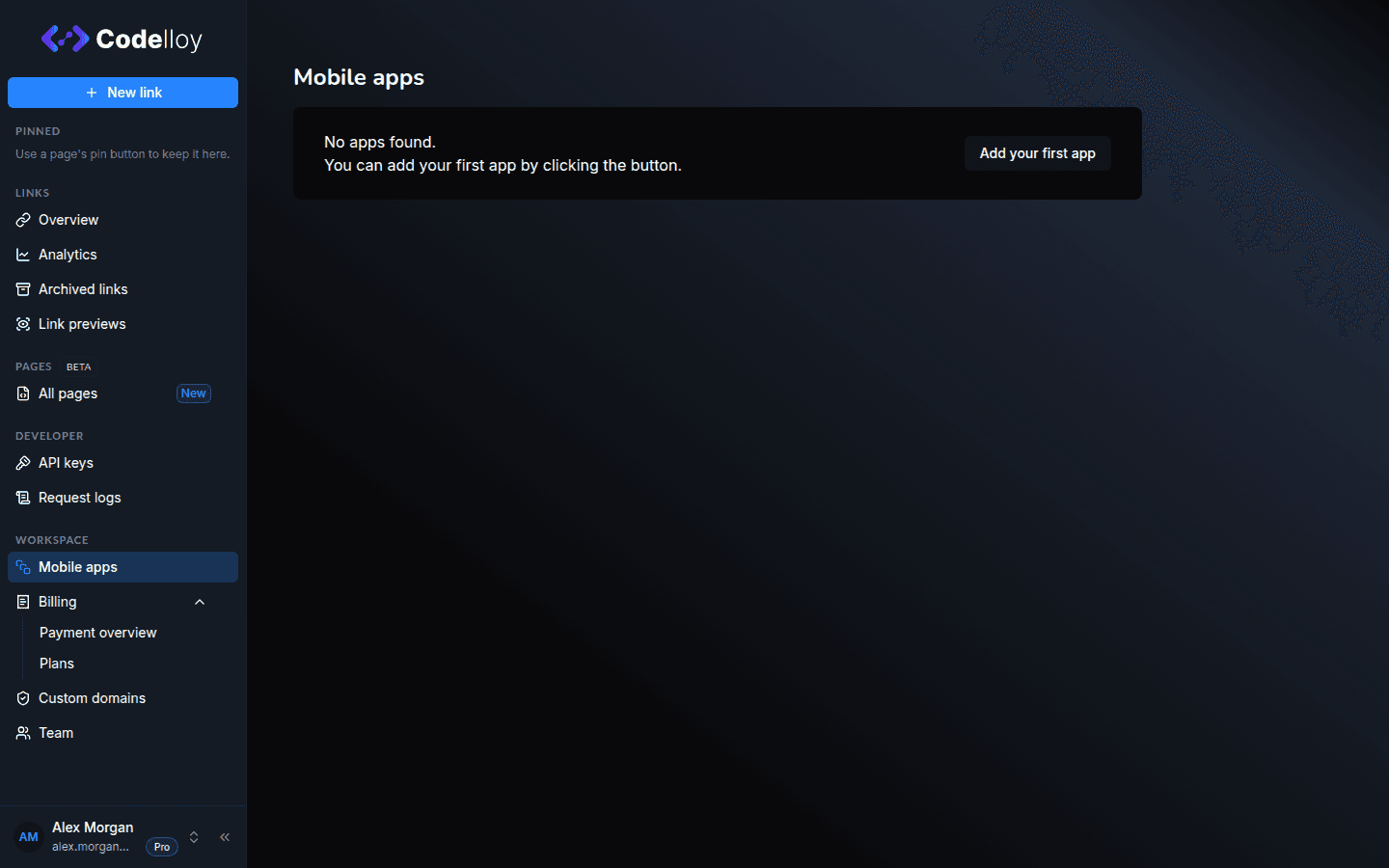
Sign in to the Codelloy Dashboard and open Workspace → Mobile apps in the sidebar.
Step 2: Add an app
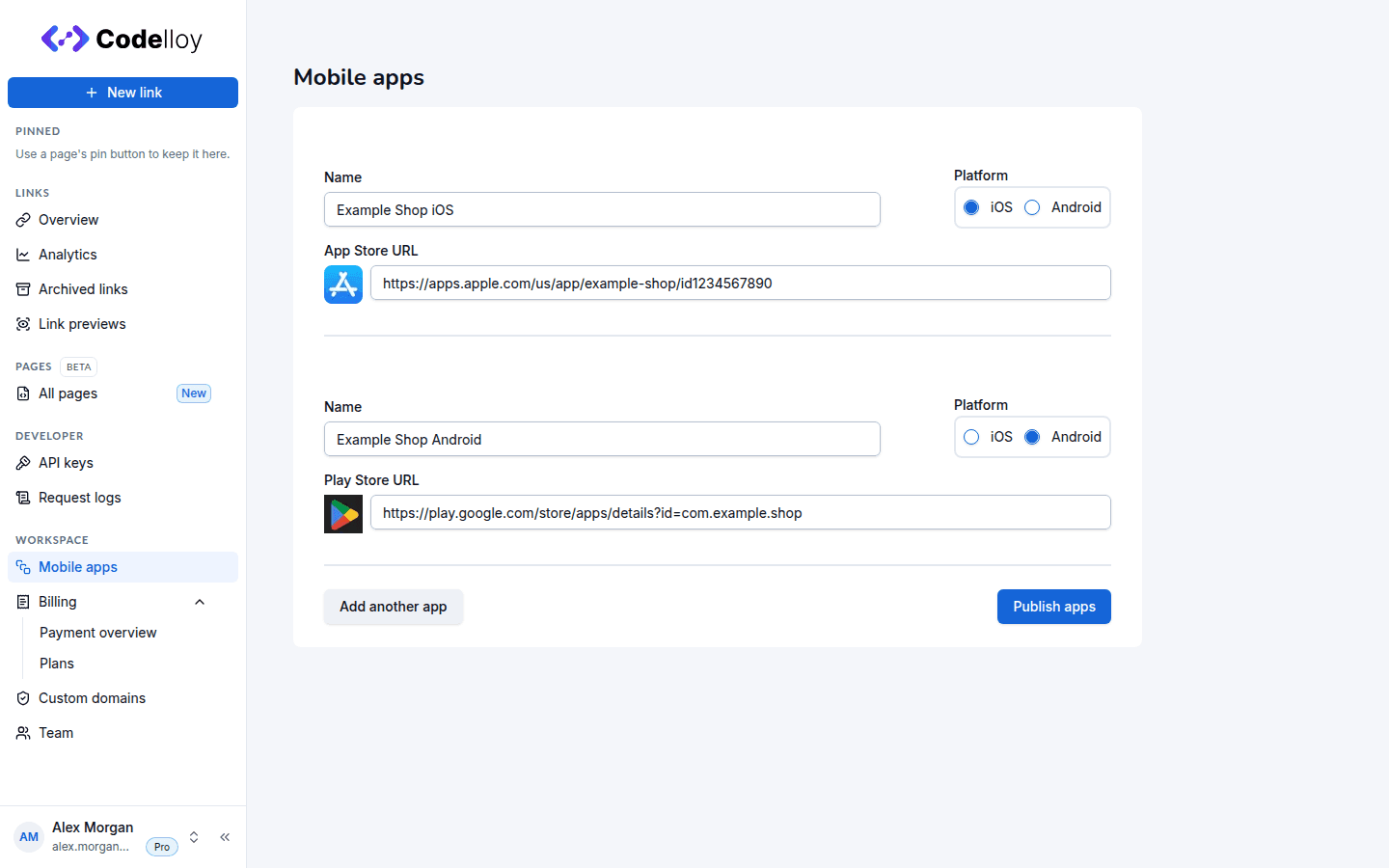
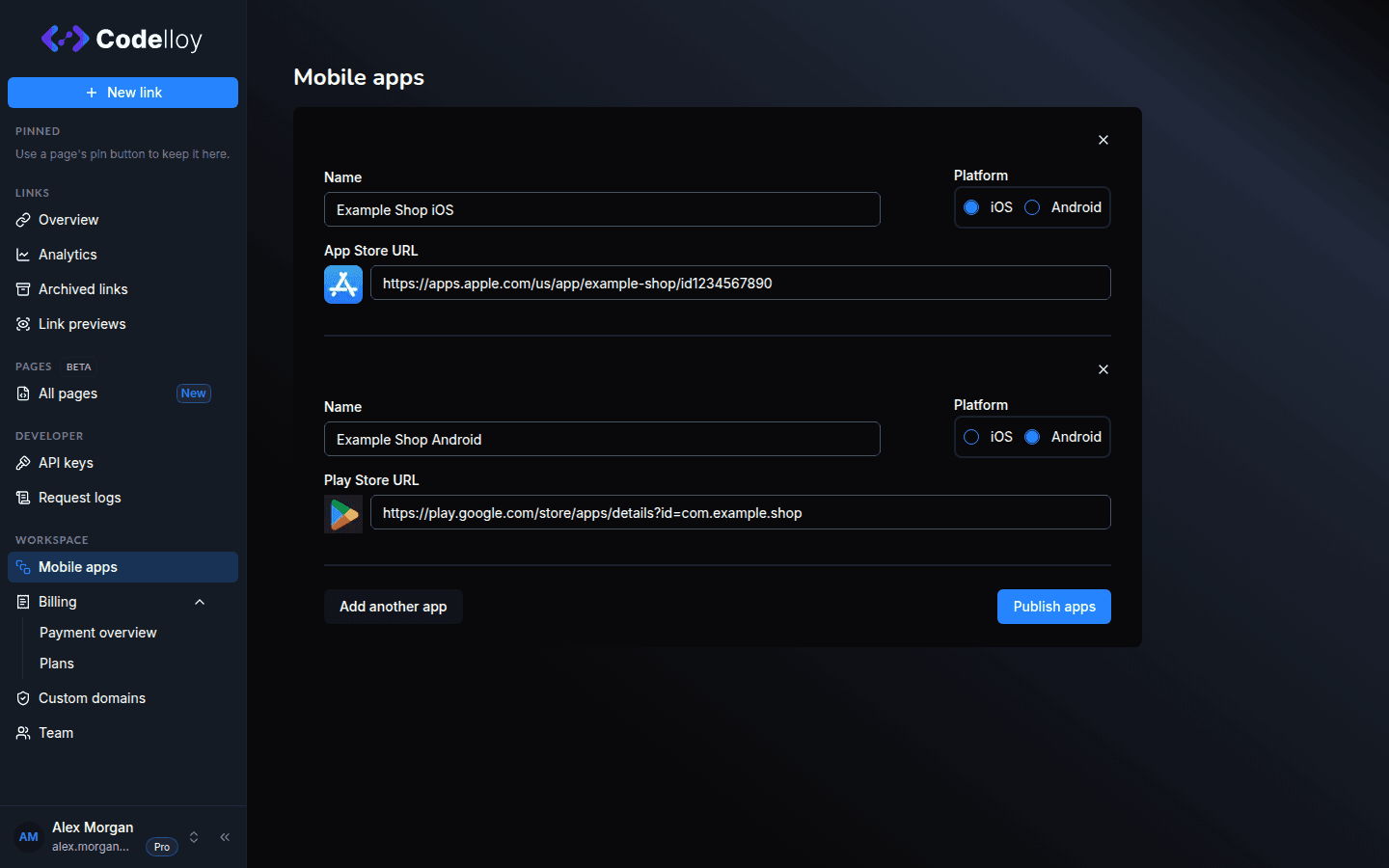
Click Add your first app (once you have an app, the button reads Add another app) and fill in the form:
| Field | Required | Notes |
|---|---|---|
| Name | Yes | A human-readable label (e.g. “Beat81 iOS”). Shown on the dashboard but not in API responses. |
| Platform | Yes | One of iOS / Android / Web (serialized as "IOS" / "ANDROID" / "WEB" on the wire). Determines the type of deep link the redirector will fire. |
| Store URL | Yes | The App Store or Play Store URL the user is sent to when the app isn’t installed. |
If you have both an iOS and an Android app, add both as separate entries; each will get its own mobileAppId.
Step 3: Publish
Click Publish apps to save. Codelloy generates a 12-character mobileAppId for each new app on save and surfaces it as a read-only row below the Store URL with a copy button.
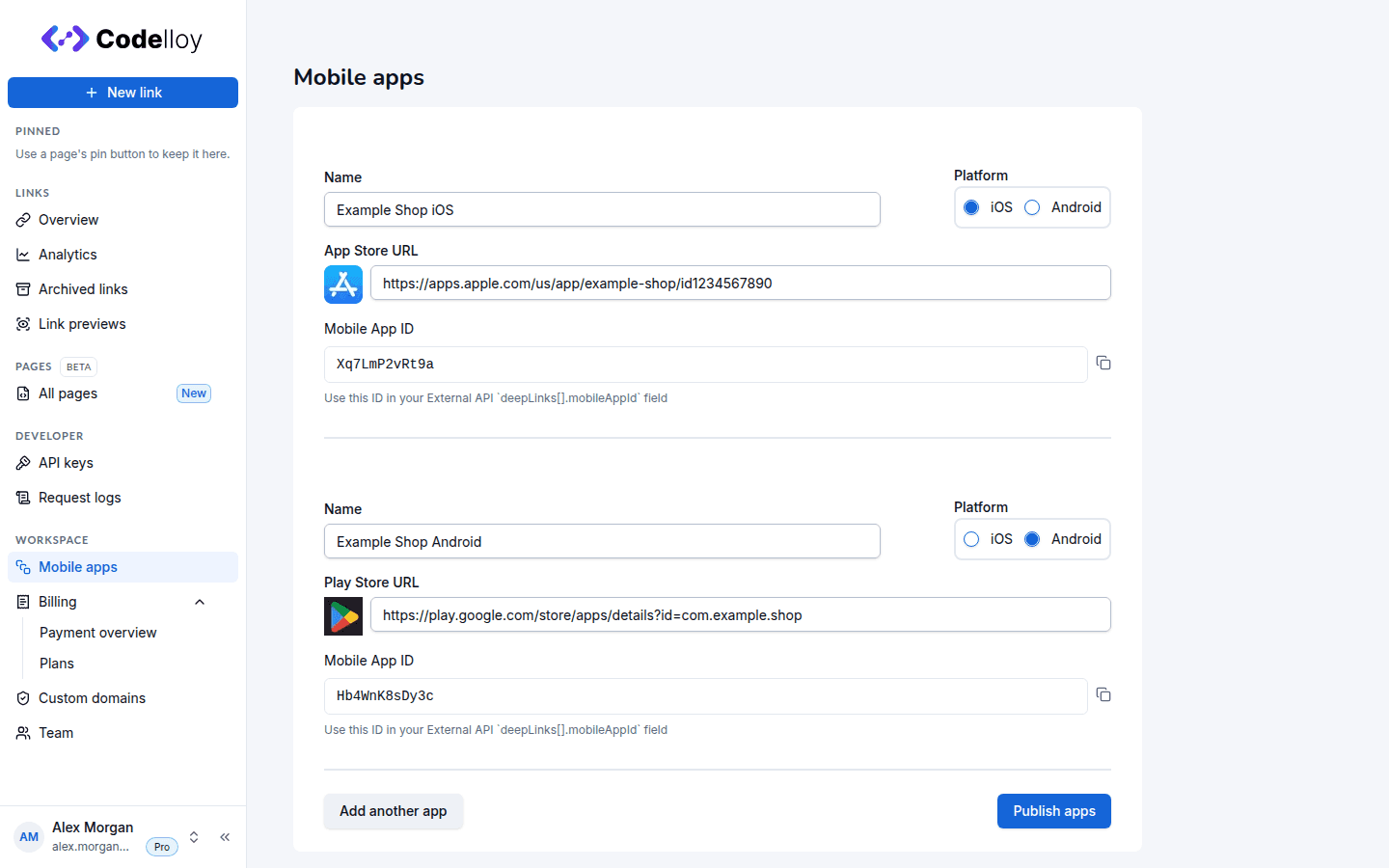
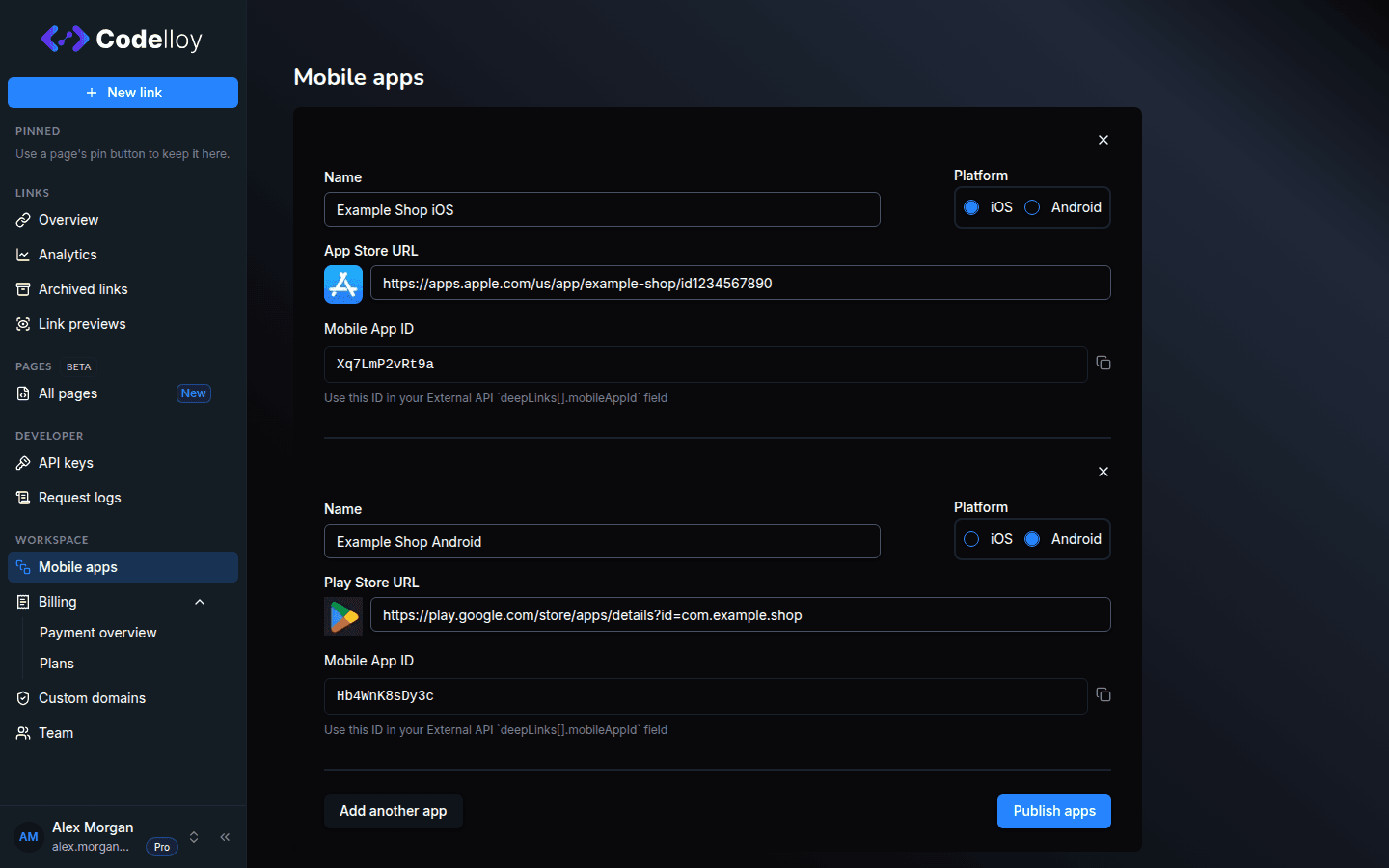
The
mobileAppIdis a stable, opaque 12-character base64-style string (charset[A-Za-z0-9+/], e.g."TgdAhWK+24tg"). Don’t URL-encode or split; pass it verbatim. The+character is part of the alphabet, not a separator.
Step 4: Use the ID in API requests
Copy the mobileAppId and pass it in every deepLinks[] entry on POST /link/external/v1/shortenedUrl/save:
curl -X POST https://api.codelloy.com/link/external/v1/shortenedUrl/save \
  -H "X-API-KEY: your_api_key_here" \
  -H "Content-Type: application/json" \
  -d '{
    "url": "https://example.com/product/123",
    "shortLinkName": "Spring sale — product 123",
    "deepLinks": [
      {
        "mobileAppId": "abc123def456",
        "deeplinkUrl": "myapp://product/123",
        "fallbackUrl": "https://example.com/product/123",
        "linkBehaviour": "app",
        "fallbackEnabled": true
      },
      {
        "mobileAppId": "789xyz456ghi",
        "deeplinkUrl": "myapp://product/123",
        "fallbackUrl": "https://example.com/product/123",
        "linkBehaviour": "app",
        "fallbackEnabled": true
      }
    ]
  }'
See Endpoints for the full request schema and Field Reference for every field’s type and constraint.
Server-controlled response fields
When you read a short URL back (via the list endpoint or in the create response), each deepLinks[] entry will have two fields filled in from the registered MobileApp at read time:
| Field | Behaviour |
|---|---|
platform | Reflects MobileApp.platform enum, serialized as "IOS" / "ANDROID" / "WEB". Any value supplied in the request body is overwritten on save. |
storeUrl | Reflects the current MobileApp.storeUrl. Edits to the registered app are reflected immediately on the next read; no need to re-save the short URL. |
If you change a registered app’s Store URL on the dashboard, every existing short URL that references that app starts redirecting to the new store URL on the next click. There’s no frozen snapshot.
What happens if mobileAppId is missing or invalid?
| Payload | Result |
|---|---|
deepLinks omitted, or deepLinks: [] | 200 OK: plain short URL with no deep-link behaviour. |
deepLinks[].mobileAppId is null, empty string, or whitespace | 400 Bad Request with error code DL001. |
deepLinks[].mobileAppId doesn’t match a registered app for your organisation | 400 Bad Request with error code DL001. The offending value is echoed in the details.mobileAppId field of the error response. |
| Partial: one platform configured, the other omitted | 200 OK: the configured platform deep-links normally; the missing one falls back to the plain url. |
Tip for integrators with a flag-gated rollout: only push a deepLinks[] entry when both the mobileAppId AND the corresponding deep-link URL are available in your environment. Sending a partial entry (e.g. mobileAppId but no deeplinkUrl) won’t fail validation, but it produces a short URL with broken deep-link behaviour at click time.
Deleting an app
Removing an app on the dashboard sets is_active = false on the registered MobileApp row, making it a soft delete. Existing short URLs that reference the now-inactive app:
- Continue to resolve (no 404 / no error).
- Lose their deep-link behaviour on the affected platform; clicks redirect to the plain
url. - Show a warning in the dashboard for operators auditing the link.
If you need to migrate an app to a new entry (e.g. you re-published it under a different package name), the cleanest path is: register the new app, get the new mobileAppId, then re-save the short URLs to point at the new ID. The dashboard’s bulk-update isn’t yet wired for this, so file a ticket if you need it.
Next steps
- Quick Start: end-to-end example to create your first deep-linked short URL.
- Endpoints: full request and response reference.
- Field Reference: every field, type, and constraint.
- API Errors:
DL001and related error codes.