Request Logs
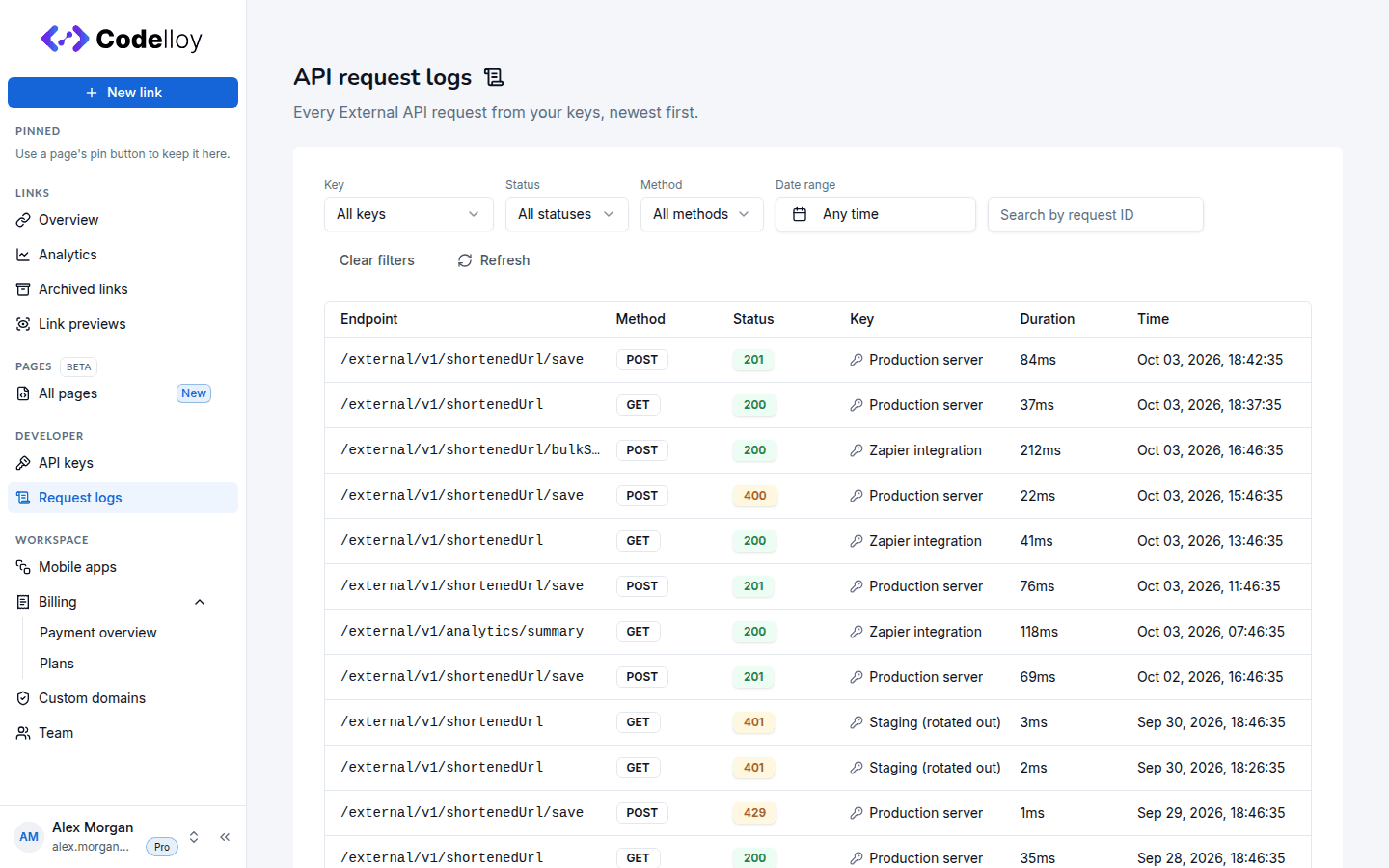
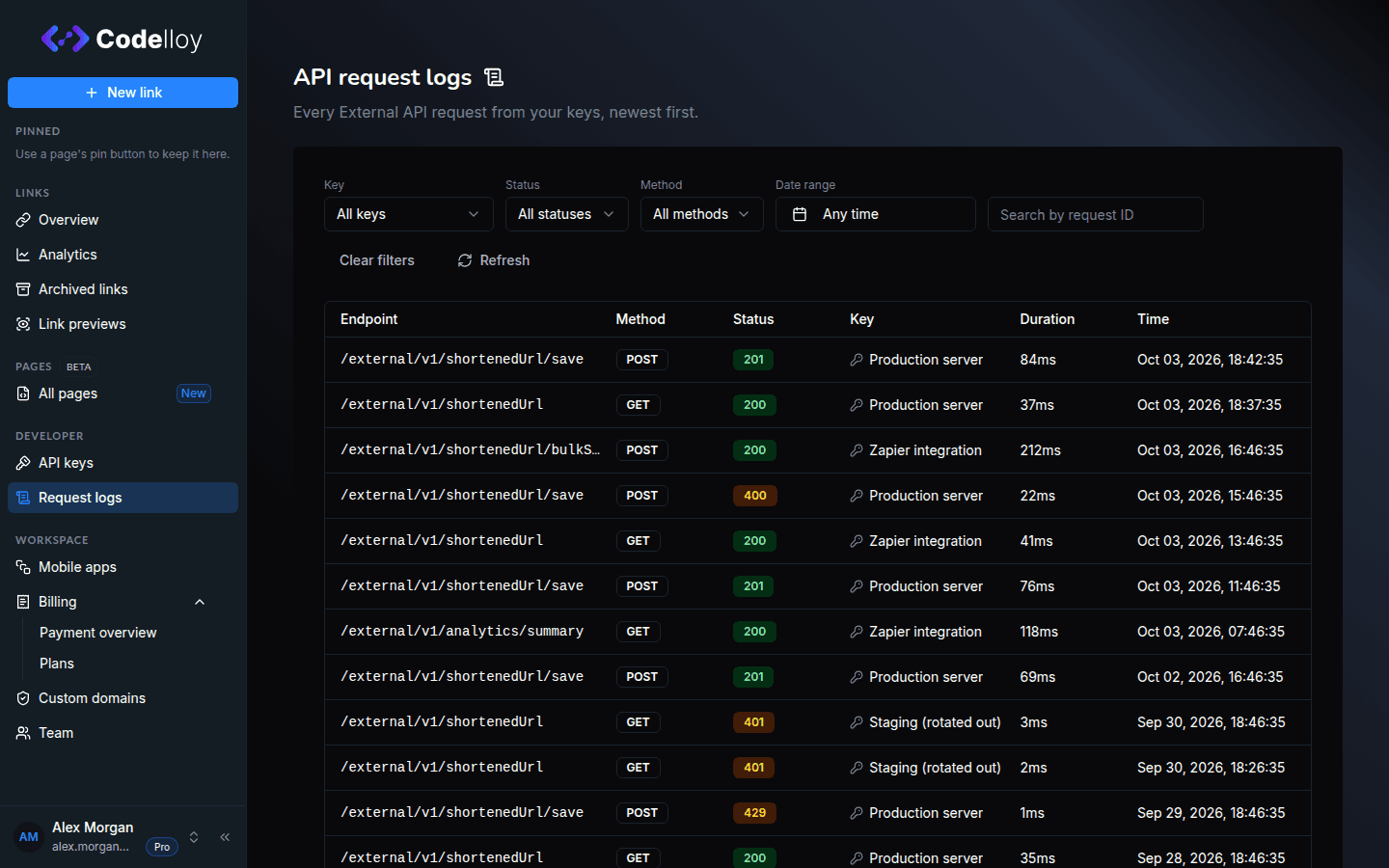
Every attributable request to the Codelloy External API is logged, so you can debug integrations without adding your own instrumentation. Open it from the dashboard sidebar at Developer → Request logs.
What’s captured
Each log entry records:
- Method and path of the request.
- HTTP status of the response.
- Latency (how long the request took to serve).
- Originating key — the API key that authenticated the request, shown by its label.
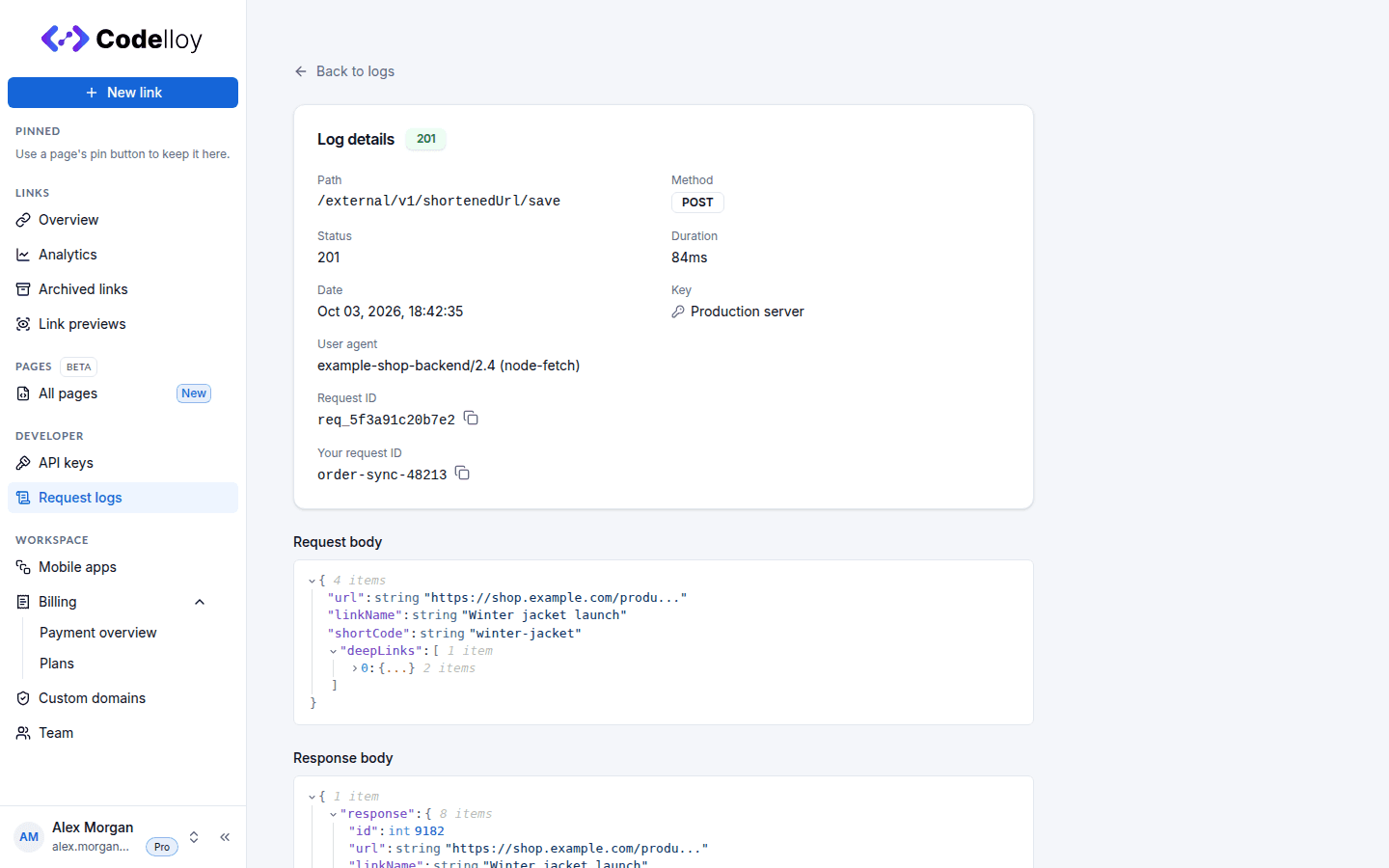
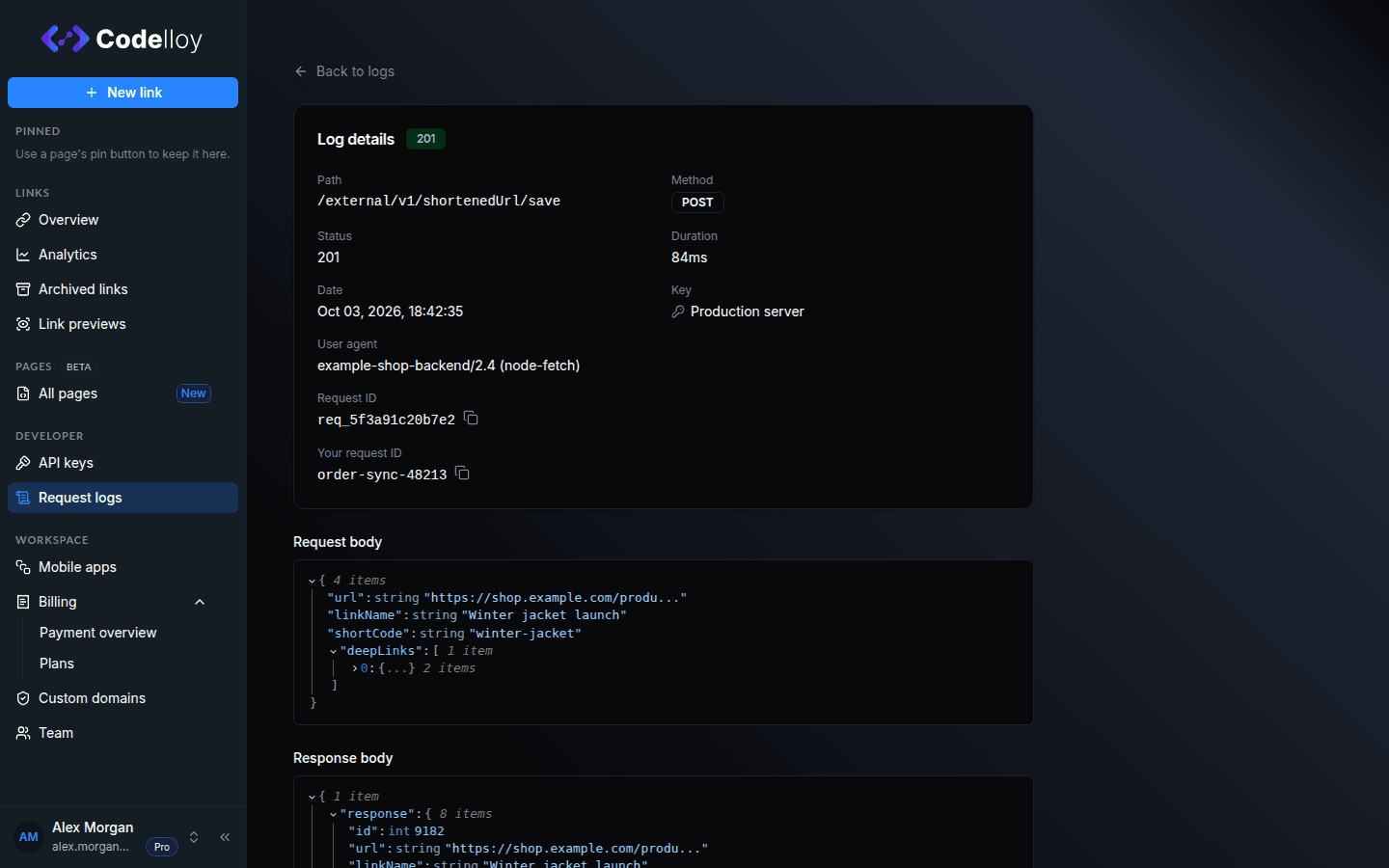
- Request and response bodies — captured verbatim, up to roughly 16 KB each. Larger bodies are truncated at that ceiling.
Headers are never stored. In particular your X-API-KEY is never written to the log — only the key’s label is retained for attribution.
The X-Request-Id header
Every External API response carries an X-Request-Id header — on both success and failure. The value is a req_… identifier, and it is exactly the id of the matching request-log entry.
HTTP/1.1 200 OK
Content-Type: application/json
X-Request-Id: req_8f3c1a9b2d7e4f60
Capture this header in your client (log it alongside your own request records) so that when something goes wrong you can jump straight to the corresponding entry in the request log instead of guessing which call it was.
Send your own request id
If you already tag your outbound calls with a correlation id, send it as an inbound X-Request-Id request header. Codelloy stores your value on the matching log entry (shown as Your request ID on the entry’s detail view, trimmed to 200 characters) so you can line up a Codelloy log with your own records. Codelloy still assigns its own req_… id as the entry’s identifier and returns that in the response header — your value is kept alongside it, never as a replacement.
Retention & visibility
Retention depends on your plan. Entries older than your plan’s retention window are pruned automatically.
| Plan | Retention |
|---|---|
| Free | 1 day |
| Pro | 7 days |
| Business | 30 days |
| Enterprise | 30 days |
Visible to all roles. Owner, Editor, and Viewer can all open Developer → Request logs and inspect entries. (Creating, revoking, or renaming keys remains Owner-only — see Obtaining Your API Key.)
Filtering & search
The log view supports:
- Filter by key — narrow to requests made with a specific API key (by label).
- Filter by status — isolate failures (e.g.
401,429,400) from successes. - Filter by method —
GET,POST,PATCH, etc. - Filter by date — restrict to a time window within your plan’s retention window.
- Search by request ID — paste an
X-Request-Idvalue to jump directly to that entry.
Open any entry to see its detail view, which renders the captured request and response bodies — as an interactive JSON tree when the body is JSON, or as raw text when it isn’t.
Debugging workflow
A typical loop when an integration misbehaves:
- Make the call from your integration (or reproduce it with
curl). - Grab the
X-Request-Idfrom the response headers. - Search for it in Developer → Request logs.
- Inspect the bodies — compare the exact request payload you sent against the response the API returned. This makes it obvious whether the problem is a malformed request, a validation rejection, or an unexpected response.
For a 401, cross-check whether the originating key is Active or Revoked on the API keys page. For a 429, see Rate Limiting; for other error codes, see API Errors.
Next steps
- Obtaining Your API Key: create, revoke, and rename the keys whose requests appear here.
- Rate Limiting: understand the per-organisation
429responses you’ll see in the log. - API Errors: the full error-code catalogue for the failures you’ll inspect.